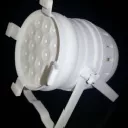
Using DMX Control with a midi foot controller

We proudly present: The release of DMXControl 3.3.3!


On September 29, 2026, we held our release show for DMXControl 3.3.3. During our usual “hour-long” session, we showed you all the new features in this version and what it now has to offer.
Read all about it in the corresponding news article: We proudly present: The release of DMXControl 3.3.3!


  • Hi Stefan,

    Ok I've followed your instructions on grouping but I cannot get a chase to stop when I start another chase, either by selecting chases from the chaser tool window or by using my midi controller.

    When I select a chase (e.g. with my midi controller) the chase text in the chaser tool window turns to bold text to indicate that it is running. When I press another midi switch on my controller the new chase text turns bold text but the previous chase stays bold, showing that it's still running.

    It may be that I have not understood your instructions correctly. I have done a "pack and go" and attached it to this post.

    You're right about the power cycle on the DMX4 All USB / DMX Cable. When I unplugged it from my PC the latency reappeared. Pressing the blackout button a few times cured it again. However I just unplugged it again and this time I can't get rid of the latency by pressing the blackout button. And now having unplugged again I can't get the lights on at all. I'm going to re-boot my PC to see if that cures the problem.


    Will H

  • Stopping a chaser when another one starts is no problem for DMXC. Group all the chasers you want to be mutually exclusive by adding a group name in parenthesis (e.g. "Chaser 1 (LEDPAR)"). Then enable the option "Execute only one chaser per group" in the chaser tool.

    Hi Stefan,

    OK I did misunderstand you with regard to the grouping method. Now I understand it and have tried this method with success.

    thank you for your help.

    I have spent the last 90 minutes trying to get the dmx interface working correctly. It seems to be a bit inconsistent. At one stage I had a long delay of 4 seconds. Then, after pressing the blackout key a number of times, I got no delay at all (perfect function). Then I tried to power cycle again by unplugging the cable and I couldn't get DMXC to work at all with the cable. I tried re-booting my PC but this didn't work either. After a few more unplug attempts and quite a few presses of the blackout key I'm now back to no delay. If I could maintain this state then I have a working solution.

    Can you advise anything to sort this delay problem permanently? You mentioned something about limiting the number fo dmx channels

    f I remember correctly, the minimal number of channels to be sent can be configured with the configuration tool from DMX4all.

    However I have no idea where to find the configuration tool for the DMX4all cable. Any ideas?

    Regards

    Will H

    Edited once, last by Scyam (October 30, 2012 at 9:59 AM).

  • Hi Stefan,

    OK I downloaded that piece of software but it hasn't helped. There is an option under Settings /Hardware Settings to limit the number of channels but as soon as you close the window the information is lost and it doesn't store it on the DMX4All cable interface. This app really just seems to be a simple way to control the lights - and it does work.

    However the good news is that, by trial and error, I have found a method to remove the delay in sending the DMX signal. This method seems to be a consistent and re-usable so I have documented it and attached it to this post.

    So for anyone who might encounter the same problem using a DMX4All mini USB / DMX interface cable here is how to work around the latency problem:

    1. plug in dmx cable to the PC
    2. plug in midi cable to the PC
    3. open DMXC - displays the message about the wrong baud rate - Press OK
    4. open Chasers tool
    5. Play a chase - time delay about 4 seconds
    6. If no light then-
    6.1. go to settings / output plugins
    6.2. select DMX4all Transmitter and press Configure button
    6.3. Press connection testing button
    6.4. If message saying no connection
    6.4.1. unplug DMX cable - wait 5 seconds and plug back in
    6.4.2. Go back to step 5
    6.5. If message saying connection OK
    6.5.1. Go back to step 5
    7. Press the Freeze /unfreeze button.
    8. Wait 10 seconds
    9. Press the Freeze /unfreeze button again and after a few seconds the lights go out.
    10. Press Stop all chasers.
    11. Now select a chase and press Play. Lights come on instantly.
    12. Now the midi controller can be used

    I have tried the above process several times starting from a re-booted PC and from just closing down DMXC. It works each time.

    Now if I can work on my problem with the Kam Parbar (lights do not seem to respond to dmx controls from app). I suspect that this is a problem with the device deifnition that I created.

    My thanks must go to HOC, Uwe, Stefan and JPK for helping me with this. I could not have solved these problems without your help and advice. If I can solve this last problem then I think that I have a very workable solution in DMXControl.

    Regards

    Will H

  • Hi to All,

    Just tried my Kam Parbar without changing the device description and it now works. So the problem must have been tied up with the DMX4All interface cable not transmitting correctly.

    Many thanks to all who helped me through these problems and gave me guidance on how to correctly use DMXC. When you know how to use it properly then it's a great piece of software.

    Regards

    Will H

  • Newly created posts will remain inaccessible for others until approved by a moderator. The last reply was more than 365 days ago, this thread is most likely obsolete. It is recommended to create a new thread instead.